From Static Spreadsheets to Strategic Action: The Ultimate Guide to Mastering Microsoft Power BI


In modern business, relying purely on historical, static reporting is like driving while only looking in the rearview mirror. You might know exactly where you’ve been, but you have no idea what’s coming next. When you step into a room to present a critical two-year strategy deck to the board, you cannot afford to be caught off guard by a question your static slides or rigid spreadsheets can't answer. Microsoft Power BI is the engine that shifts organizations from reactive reporting to proactive, data-driven decision-making.
This complete guide explores the foundational concepts of Power BI, its hidden data-shaping engines, advanced analytical languages, and why it is rapidly becoming the undisputed gold standard for business intelligence across the globe.
What Exactly is Power BI?
At its core, Microsoft Power BI is a unified, scalable platform for self-service and enterprise business intelligence (BI). It is a collection of software services, apps, and connectors that work seamlessly together to turn your disparate, unrelated sources of data into coherent, visually immersive, and interactive insights.
Whether your data lives in a simple local Excel spreadsheet, a massive cloud-based data warehouse, or a third-party CRM, Power BI acts as the great unifier. It allows you to connect to these sources, extract what is important, visualize the story, and securely share it with stakeholders.
The Anatomy of the Platform
To truly utilize Power BI, it helps to understand that it is not just a single piece of software. It is a robust ecosystem divided into three primary components, each serving a distinct phase of the BI lifecycle:
- Power BI Desktop: This is a free, powerful Windows application where the heavy lifting happens. It is the developer's canvas. Here, analysts connect to data, transform and clean it, build relational data models, and design the actual report pages.
- Power BI Service: Once a report is built in Desktop, it is published to the Power BI Service. This is the cloud-based SaaS (Software as a Service) platform where reports are hosted, automated refresh schedules are established, and collaborative workspaces are managed.
- Power BI Mobile: Available for iOS and Android devices, these applications allow executives and on-the-go stakeholders to consume reports natively on their phones or tablets, ensuring that critical KPIs are always just a tap away.
Breaking Free from the Spreadsheet
Many finance, operations, and sales professionals are intimately familiar with the limitations of traditional spreadsheets. You might build a brilliant, complex model, but sharing it often involves emailing multiple versions of the truth. When the underlying data changes, the manual updating process begins all over again.
Power BI solves the "version control" nightmare. By establishing a direct, automated connection to your data sources, Power BI ensures that there is only one version of the truth. When the database updates, your visualizations update. The magic begins with the Get Data button, which boasts hundreds of native, out-of-the-box connectors.
However, connecting to your data is the easy part; ensuring that data actually makes sense is where the real analytical work begins. Raw data is rarely ready for the boardroom. It is often messy, disjointed, and structured in a way that makes reporting impossible.
Shaping the Chaos: Power Query
Before your data ever hits the visual canvas, it passes through Power Query. Think of Power Query as a highly automated, deeply intelligent data preparation kitchen. If you are transitioning a rigorous, five-year outlook financial model from Excel into Power BI, Power Query is where you sanitize and structure the historical inputs.
Through a highly intuitive interface, you can perform complex transformations without writing a single line of code. You can filter out null rows, strictly define data types, split columns, and merge multiple queries. The true brilliance lies in the Applied Steps pane. Every click you make is recorded sequentially. The next time your dataset refreshes, Power Query executes those exact same steps automatically, flawlessly cleaning your new data in milliseconds.
Building the Semantic Model
Once the data is clean, it must be related. Imagine you are analyzing an auction business. You likely have a table for Bidders, a table for Auction Items, and a massive table for Transaction Histories. In their raw form, these tables are isolated islands.
Data modeling is the architectural process of creating relationships between these tables. The gold standard in Power BI is the Star Schema:
- Fact Tables: These sit in the center of your model and contain the measurable, quantitative, transactional data (e.g., Auction Revenue, Daily Active Users).
- Dimension Tables: These surround your fact tables and provide the context (e.g., a Date Calendar, Customer Demographics, Product Categories).
A well-structured model makes your reports lightning-fast and your formulas incredibly simple. A poor model will result in sluggish dashboards and inaccurate aggregations. With a rock-solid foundation built, we are finally ready to make the data visible.
The Art of the Dashboard: Visualizing for Impact
Data is only as valuable as the insights you can effectively communicate. If your audience cannot understand the story your data is telling within the first five seconds, the visualization has failed. The goal of a dashboard is clarity and speed to insight, not artistic flair.
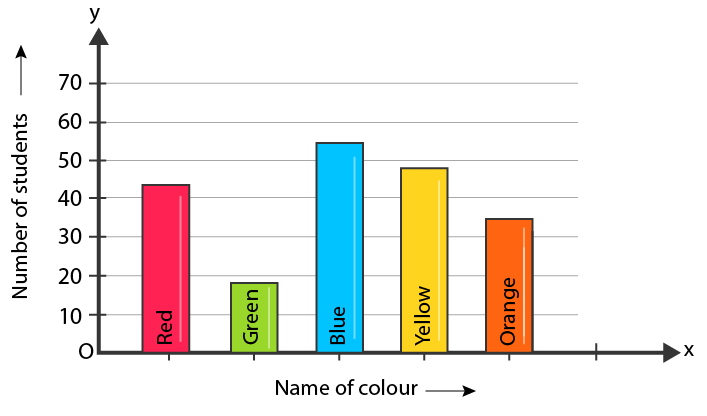
- Bar and Column Charts: The workhorses of BI, perfect for comparing categories.
- Line Charts: The undisputed champion of showing trends over time.
- Scatter Plots: Ideal for identifying correlations and outliers. By plotting two distinct variables (like customer acquisition cost versus customer lifetime value) across product lines like high-end travel gear and backpacks, a scatter plot can instantly reveal your most profitable segments.
- Cards and KPIs: Use these single-value visuals at the very top of your dashboard to display the most critical, high-level metrics.
When designing for executives, user experience (UX) is paramount. Western readers consume information in a "Z" pattern—left to right, top to bottom. Place your most critical KPI cards in the top left, introduce more granular charts below, and place detailed data matrices at the bottom. Furthermore, maintain consistent real estate; if a specific metric is blue on page one, it must be blue on page three.
A great dashboard also facilitates an investigation. You don't need to cram every piece of information onto a single page. Use Custom Tooltips to reveal miniature report pages when a user hovers over a data point, or leverage Drill-Through functionality to allow a user to right-click a summary metric and jump to the underlying transactions.
Leveling Up: DAX and AI-Powered Analytics
While beautiful visuals answer immediate questions, truly unlocking your data requires speaking Power BI's native language: DAX (Data Analysis Expressions).
While DAX shares some basic syntax with Excel, its underlying logic is entirely different. Excel calculates across physical cells; DAX calculates across tables and columns dynamically. Mastering advanced DAX patterns can sometimes feel like going up against a relentless boss in Elden Ring or Sekiro—you will likely face a few syntax errors before you understand the underlying mechanics. But once it clicks, you have absolute programmatic control over your data.
With DAX, you create Measures—fluid instructions rather than static numbers. A DAX Measure for Year-over-Year (YoY) Growth adapts instantly whether the user views data by quarter, by region, or by product category.
To act as a force multiplier for these calculations, Microsoft has aggressively integrated advanced AI into the ecosystem. Features like the Key Influencers visual automatically analyze what factors drive a specific metric. The Q&A feature allows users to interrogate their data using natural language, instantly generating charts based on typed questions. Furthermore, Microsoft Copilot acts as a generative AI assistant, helping developers write complex DAX formulas and summarizing entire semantic models in seconds.
The Future of BI: Microsoft Fabric and Real-Time Analytics
The boundaries of business intelligence are expanding rapidly. It is no longer enough to analyze what happened last month; organizations need to know what is happening right this second. This brings us to the cutting-edge integration of Power BI within the broader Microsoft ecosystem, specifically Microsoft Fabric.
Fabric is an end-to-end analytics platform that unifies data engineering, warehousing, data science, and Power BI. At its heart is OneLake, the "OneDrive for data." Instead of copying data across various silos, all organizational data lives in OneLake. Power BI can query this massive data lake directly using Direct Lake mode, offering the blazing-fast performance of fully imported data without the latency of actually moving it.
This architecture enables true real-time analytics. For high-velocity environments—whether that is tracking the rapid price fluctuations of a cryptocurrency portfolio holding assets like Solana, Tao, and Sui, or monitoring live supply chain disruptions—real-time dashboards allow leaders to act instantly rather than retroactively.
Conclusion
Microsoft Power BI is vastly more than just visualization software; it is a catalyst for organizational transparency and strategic agility. By mastering its tools—from the humble Power Query interface to the mathematical precision of DAX, and looking ahead to the expansive architecture of Microsoft Fabric—you empower yourself and your organization to stop guessing, start knowing, and lead with absolute confidence.